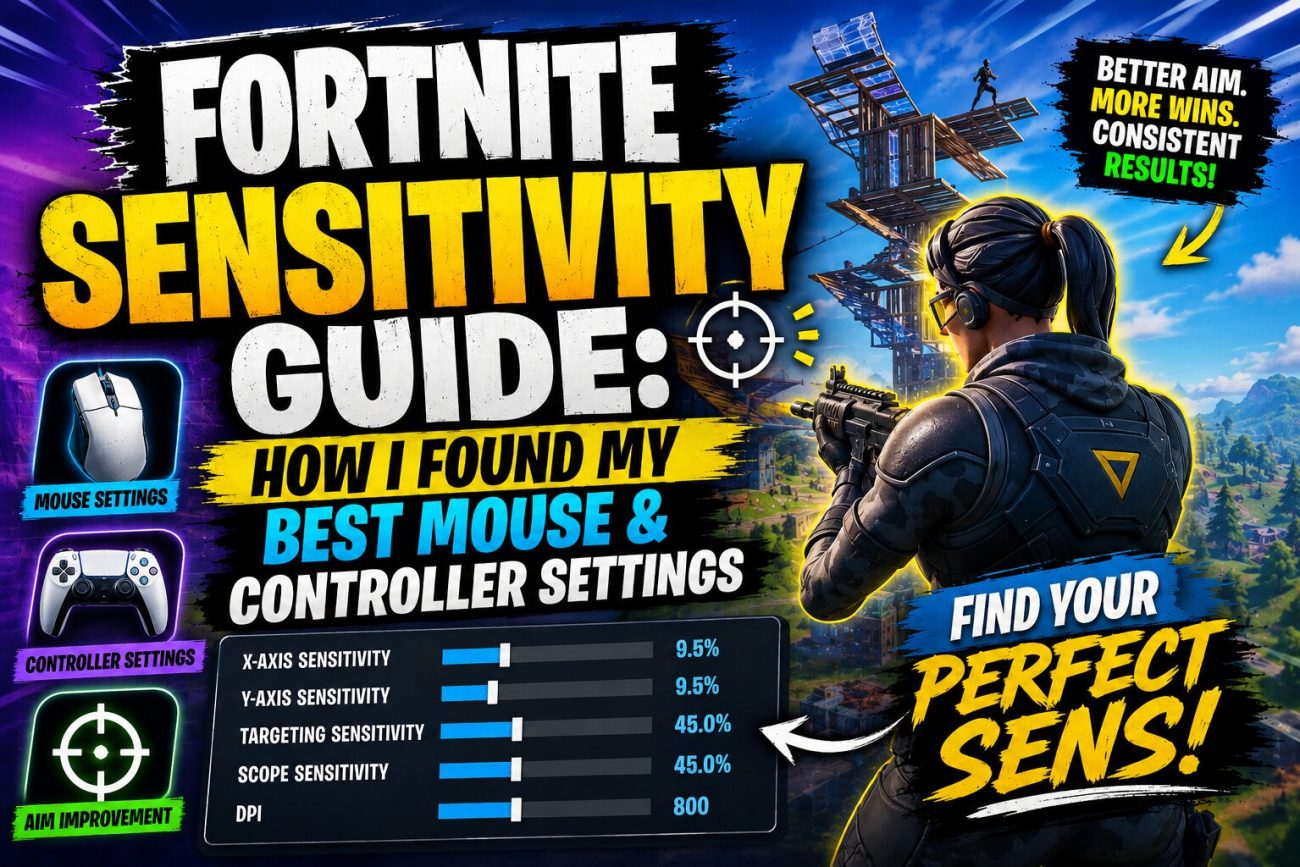
Finding the right Fortnite sensitivity can be surprisingly difficult.
Set it too high and your crosshair may feel difficult to control.
Set it too low and turning, tracking, and reacting to opponents can feel slow.
The problem is that there isn’t one sensitivity setting that works perfectly for everyone.
Your ideal settings depend on your:
- Input device
- Mouse DPI
- Playstyle
- Aim preference
- Desk space
- Controller sensitivity
- Experience level
- Whether you play Builds or Zero Build
After testing different settings, I learned that finding a good sensitivity wasn’t about copying a professional player’s setup.
It was about finding settings that I could control consistently.
What Is Fortnite Sensitivity?
Sensitivity determines how much your camera or crosshair moves when you move your mouse or controller stick.
A higher sensitivity means:
Small physical movement → Large camera movement
A lower sensitivity means:
Large physical movement → Smaller camera movement
Neither is automatically better.
The goal is to find a setting that allows you to make both small precise adjustments and fast turns.
Mouse Sensitivity vs Controller Sensitivity
The first thing to understand is that mouse and controller sensitivity work differently.
Mouse
Mouse aim depends heavily on:
- DPI
- Fortnite sensitivity
- Mousepad size
- Arm movement
- Wrist movement
A player’s effective sensitivity is influenced by both mouse DPI and the in-game sensitivity.
For example, two players can have the same Fortnite sensitivity but completely different mouse DPI settings.
That’s why copying only someone’s Fortnite sensitivity isn’t enough.
Controller
Controller players have additional settings such as:
- Look sensitivity
- ADS sensitivity
- Build sensitivity
- Edit sensitivity
- Deadzone
- Aim Assist-related settings
Controller players also have to consider how quickly the analog sticks respond to movement.
A setting that feels perfect for one controller player may feel terrible for another.
My Starting Point
Instead of immediately searching for a “perfect” sensitivity, I started with a moderate setting.
The goal was to create a baseline.
From there, I tested:
Low sensitivity
Medium sensitivity
High sensitivity
I used each setting long enough to understand its strengths and weaknesses rather than changing it every few minutes.
That turned out to be important.
Why Constantly Changing Sensitivity Is a Problem
One of the biggest mistakes I made was changing settings too often.
I’d miss several shots and immediately think:
“My sensitivity is wrong.”
Then I’d change it.
After a few matches, I’d change it again.
This creates a problem.
Your hands never get enough time to adapt.
Instead of improving your mechanics, you’re constantly learning a new sensitivity.
Better approach
Choose a setting.
Practice it.
Test it in real matches.
Identify a specific problem.
Then make a small adjustment.
Testing Low Sensitivity
I started by testing a lower sensitivity.
The biggest advantage was control.
Small mouse movements felt easier to manage.
This helped with:
- Long-range shots
- Tracking
- Small corrections
- Precision aiming
However, there was a downside.
Turning quickly felt slower.
If an opponent suddenly appeared behind me, I needed much more physical movement to turn around.
Low sensitivity is useful for:
- Precision
- Tracking
- Long-range combat
- Players with large mousepads
- Arm aiming
Main disadvantage
Slower large movements
Testing Medium Sensitivity
Medium sensitivity felt like the best balance.
I could make relatively small adjustments without feeling completely restricted when turning.
This made it easier to:
- Track enemies
- Turn quickly
- Build
- Edit
- Aim at medium range
It also felt more forgiving when I made a small aiming mistake.
For many players, a moderate sensitivity can be a good starting point.
But it’s still not automatically the best choice.
Testing High Sensitivity
High sensitivity immediately felt faster.
Turning around was easy.
Quick flicks required very little physical movement.
That sounds great.
But there was a problem.
Precision became harder.
Small mouse movements produced larger crosshair movements.
That meant I sometimes moved past the target.
High sensitivity can work well for:
- Fast building
- Quick turns
- Aggressive play
- Small mousepads
- Players comfortable with wrist aiming
Main disadvantage
Fine aiming can become more difficult.
What I Learned From the Test
The most important discovery was that I didn’t need the fastest sensitivity.
I needed the fastest sensitivity I could still control accurately.
That’s an important distinction.
Instead of asking:
“What’s the best Fortnite sensitivity?”
Ask:
“What’s the highest sensitivity I can control consistently?”
That gives you a much better starting point.
How I Tested My Mouse Sensitivity
I used several simple tests.
Test 1: 180-Degree Turn
I wanted to see how easily I could turn around.
The goal wasn’t maximum speed.
I wanted a controlled 180-degree movement.
If I consistently stopped too early or too late, the sensitivity needed adjustment.
Test 2: Small Target Tracking
Next, I focused on small moving targets.
This helped reveal whether my sensitivity was too high.
If my crosshair constantly jumped past the target, I knew I needed more control.
Test 3: Target Switching
I practiced quickly moving between multiple targets.
This tested:
- Reaction
- Flicking
- Crosshair control
- Target acquisition
Test 4: Real Fortnite Matches
This was the most important test.
A sensitivity that feels excellent in an aim trainer might feel completely different in Fortnite.
Real matches introduce:
- Building
- Movement
- Pressure
- Different distances
- Unexpected enemies
- Third parties
So I tested every serious sensitivity change in actual matches.
Finding Your Fortnite Mouse DPI
DPI is another important part of mouse sensitivity.
DPI determines how sensitive your mouse is before Fortnite’s own sensitivity settings are applied.
For example, two players might use the same Fortnite sensitivity but different DPI.
Their actual mouse response can therefore feel very different.
Don’t focus only on the Fortnite percentage.
Think about the complete setup.
What Is eDPI?
eDPI is a useful way to compare mouse sensitivity between different DPI settings.
A simplified formula is:
eDPI = Mouse DPI × Fortnite Sensitivity
For example, if someone uses:
800 DPI × 5% sensitivity
their eDPI would be:
40
This makes comparisons between different DPI configurations easier.
Should You Copy a Pro Player’s Sensitivity?
You can use professional settings as a starting reference.
But don’t assume a professional player’s sensitivity will automatically make you better.
Professional players have spent enormous amounts of time adapting to their settings.
Your:
- Mouse
- Mousepad
- Desk
- Grip
- Hand size
- Playstyle
- Experience
may all be different.
Use pro settings as reference points, not rules.
Finding Controller Sensitivity
Controller players should approach sensitivity slightly differently.
Start with moderate look sensitivity.
Then test:
- Turning speed
- Tracking
- Close-range combat
- Long-range aiming
- Building
- Editing
You want to find a balance between quick movement and precise control.
Controller Look Sensitivity
If your look sensitivity is too low, turning around can feel sluggish.
If it’s too high, tracking moving opponents can become difficult.
Test a target moving across your screen.
Try to keep your crosshair on it without constantly overcorrecting.
If you’re repeatedly moving past the target, consider reducing the sensitivity.
Controller ADS Sensitivity
ADS sensitivity controls how quickly your aim moves while aiming down sights.
A lower ADS sensitivity can make precise aiming easier.
However, extremely low ADS sensitivity can make tracking fast-moving opponents difficult.
The goal is controlled movement.
Build and Edit Sensitivity
Build and edit sensitivity can be adjusted separately from general aiming.
This is particularly important for Builds players.
You may want faster building and editing while keeping your normal aiming sensitivity comfortable.
Don’t increase everything simply because you want faster edits.
Your combat aim still matters.
Controller Deadzone
Deadzone determines how much you need to move an analog stick before the game registers movement.
A lower deadzone can make the stick respond more quickly.
However, setting it too low can cause unwanted movement if your controller has stick drift.
So don’t blindly copy someone else’s deadzone.
Test your controller first.
My Ideal Sensitivity Checklist
Instead of searching for one magic number, I used these questions.
Can I track a moving enemy?
If yes, good.
Can I make small corrections?
If yes, good.
Can I turn around quickly?
If yes, good.
Can I control close-range fights?
If yes, good.
Can I build and edit comfortably?
If you play Builds, this matters.
Can I maintain accuracy when I’m under pressure?
This is probably the most important test.
Signs Your Sensitivity Is Too High
You might want to lower your sensitivity if:
- You constantly overshoot targets
- Your crosshair feels shaky
- Small corrections are difficult
- You struggle with long-range shots
- Tracking feels unstable
Signs Your Sensitivity Is Too Low
You might want to increase it if:
- Turning feels extremely slow
- You can’t react quickly
- You frequently run out of mouse space
- Large movements feel uncomfortable
- Close-range fights feel difficult because you can’t turn fast enough
Don’t Forget Your Mousepad
Your mousepad can influence which sensitivity feels comfortable.
A larger mousepad gives you more physical space for low-sensitivity aiming.
A smaller mousepad may make high or medium sensitivity more practical.
This is one reason you shouldn’t blindly copy another player’s settings.
Arm Aim vs Wrist Aim
Players often talk about arm aiming versus wrist aiming.
Arm aiming
Uses larger arm movements.
It often works naturally with lower sensitivity.
Wrist aiming
Uses smaller wrist movements.
It can feel more comfortable with higher sensitivity.
Neither technique is universally superior.
Many players naturally use a combination of both.
My Recommended Testing Method
If you’re trying to find your own settings, don’t change everything at once.
Use this process:
Step 1: Choose a baseline
Start with a moderate sensitivity.
Step 2: Practice
Use it for at least several sessions.
Step 3: Identify one problem
For example:
“My tracking is good, but turning feels too slow.”
Step 4: Make a small change
Don’t make a huge adjustment.
Step 5: Test again
Compare the new setting against your previous one.
Step 6: Keep the better option
Repeat until you find a comfortable range.
My Final Settings
This is where you should add your actual tested settings.
For example:
Mouse
- DPI: [Your DPI]
- X-Axis Sensitivity: [Your setting]
- Y-Axis Sensitivity: [Your setting]
- Targeting/ADS: [Your setting]
- Scope Sensitivity: [Your setting]
- Build Sensitivity: [Your setting]
- Edit Sensitivity: [Your setting]
Controller
- Look Sensitivity: [Your setting]
- ADS Sensitivity: [Your setting]
- Build Sensitivity: [Your setting]
- Edit Sensitivity: [Your setting]
- Deadzone: [Your setting]
Don’t include both mouse and controller results unless you actually tested both.
If you only tested mouse, change the article title to:
Fortnite Sensitivity Guide: How I Found My Best Mouse Settings
That is more credible.
The Biggest Lesson From My Sensitivity Test
The biggest mistake is searching for a sensitivity that magically makes you better.
It doesn’t exist.
A good sensitivity won’t fix:
- Poor crosshair placement
- Bad positioning
- Inconsistent practice
- Poor movement
- Panic shooting
Instead, your sensitivity should make it easier to execute the skills you’re already practicing.
How Often Should You Change Your Sensitivity?
Not very often.
If your sensitivity is reasonably comfortable, give yourself time to adapt.
Changing it after every bad match can create inconsistency.
A better approach is:
Practice → Analyze → Adjust slightly → Practice again
Fortnite Sensitivity: My Final Verdict
After testing different sensitivity ranges, I found that consistency mattered much more than the exact number.
Low sensitivity offered more precision.
High sensitivity offered faster movement.
Medium sensitivity provided a useful balance.
But the “best” setting was ultimately the one that allowed me to:
Track smoothly + make small corrections + turn quickly + stay accurate under pressure.
That’s what you should look for too.
Don’t copy a professional player just because their settings are popular.
Don’t change your sensitivity every time you lose a fight.
And don’t expect a sensitivity change to instantly improve your aim.
Find a comfortable starting point, practice it consistently, and make small adjustments based on specific problems.
Your perfect Fortnite sensitivity isn’t the setting someone else uses. It’s the setting you can control.
Frequently Asked Questions
What is the best sensitivity for Fortnite?
There is no universal best sensitivity. The right setting depends on your DPI, controller, playstyle, mousepad, and personal preference.
Is high sensitivity better for Fortnite?
Not necessarily. High sensitivity makes quick turns easier but can make precise aiming more difficult.
Is low sensitivity better for aiming?
Low sensitivity can make small adjustments and tracking easier, but it requires larger physical movements.
Should I copy a pro Fortnite player’s sensitivity?
You can use professional settings as a starting reference, but you should adapt them to your own hardware and playstyle.
What DPI should I use for Fortnite?
There isn’t one universally correct DPI. Choose a DPI that feels comfortable and then adjust your in-game sensitivity around it.
What is eDPI?
eDPI is a way of comparing mouse sensitivity across different DPI settings. A simplified calculation is DPI × Fortnite sensitivity.
Why does my aim feel shaky?
Your sensitivity may be too high, or you may be making unnecessarily large mouse movements. However, aim technique and grip can also contribute.
Why can’t I turn around quickly?
Your sensitivity may be too low, or you may not have enough physical mouse space for the way you’re currently aiming.
Should I use the same sensitivity for Builds and Zero Build?
You can, and many players prefer consistency. However, Builds players may choose different build/edit multipliers while keeping their normal aiming sensitivity comfortable.
